
This article explains how to connect or access your Linux VPS using Xshell via SSH. It is suitable for Linux-based VPS servers.
Step 1: Open Xshell
1) Launch Xshell on your computer.
2) Click New to create a new session.
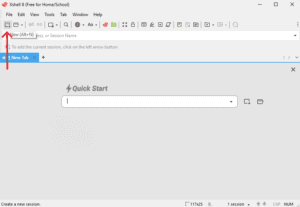
Step 2: Create a New Session
In the New Session windows, please enter:
- Name: you can enter any name (e.g. VPS 1)
- Protocol: please select SSH
- Host: Enter your VPS IP address
- Port Number: 22 (default SSH port)
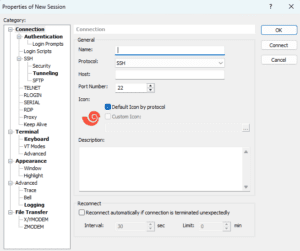
Step 3: Enter Login Credentials
1) Click on the name created for your VPS just now.
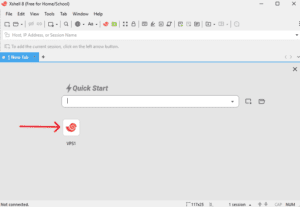
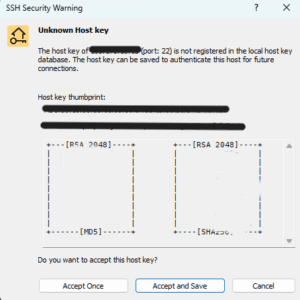
2) For first time access, it will appear as an SSH Security Warning. You can choose to accept once or accept and save.
3) Enter your username to login
- Username: root (default)
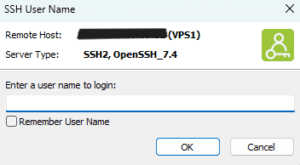
Then there are 2 option,
Option 1: Password Login
- Password: Enter your VPS password
Then, click OK to connect
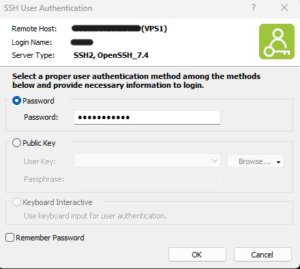
Option 2: SSH Key Login (If applicable)
- Select public key
- Browse and select your private key file
- Click OK and connect
Step 4: Successful Connection
Once connected, you will see a terminal window. Show:
[root@hostname ~]#
This means your VPS is now accessible and ready to use.