Connecting to your Window VPS or dedicated server at ServerGigabit has never been easier, thanks to RDP (Remote Desktop Protocol). RDP allows you to access and control your server remotely, providing the same experience as if you were sitting directly in front of it. Whether you are managing a website, running applications, or monitoring server performance, having remote access ensures that you can perform tasks efficiently and without interruption. This guide will walk you through how to use RDP to connect from different operating systems, including Windows, MacOS, Android, and iOS, ensuring that no matter what device you use, you can maintain full control over your server. By following these steps, you will learn how to set up a secure connection, customize your RDP settings for optimal performance, and take advantage of features like screen resolution adjustment, audio sharing, printer access, and clipboard integration. With this knowledge, you can confidently manage your server anytime, anywhere, enhancing productivity and making server administration far more convenient.
Below will be what we will covered.
Desktop operating systems connections:
- WindowsOS (e.g. Windows 7, 8, 10) RDP connections to your Window VPS or Dedicated Server
- MacintoshOS (e.g. Apple MacBook) RDP connections to your Window VPS or Dedicated Server
Mobile devices connections:
- Android based systems (e.g. Samsung Galaxy) RDP connections to your Window VPS or Dedicated Server
- iOS based systems (e.g. Apple iPhone) RDP connections to your Window VPS or Dedicated Server
WindowsOS – RDP connections
- For Windows 7: Go to “Start icon” from the taskbar and search for “Remote Desktop Connection”
- For Windows 8/10: Go to “Windows icon” from the taskbar and search for “Remote Desktop Connection”
The RDP window should show up as follows:
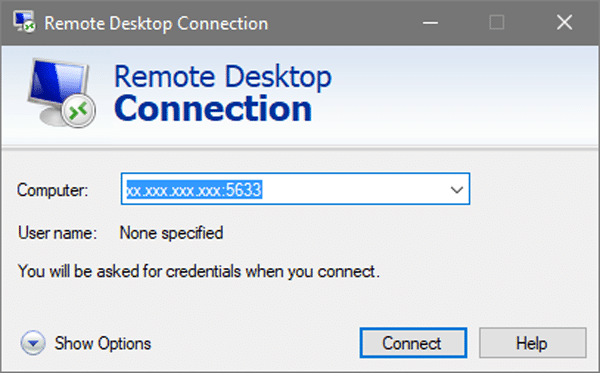
You may now access to your server by using its IP address (for example, “xx.xxx.xxx.xxx:5633”). After typing in the IP address, select “Connect” and wait for the RDP session to connect.
Alternatively, you may click “Show Options” to reveal other options, such as screen resolution and audio settings.
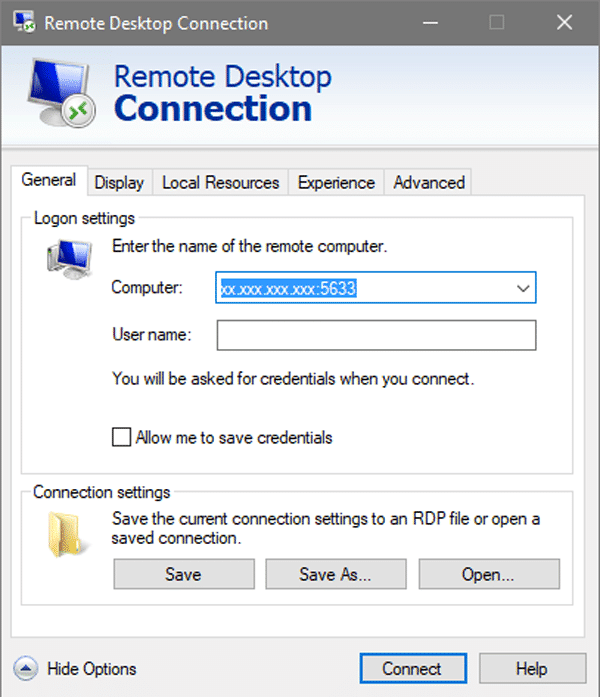
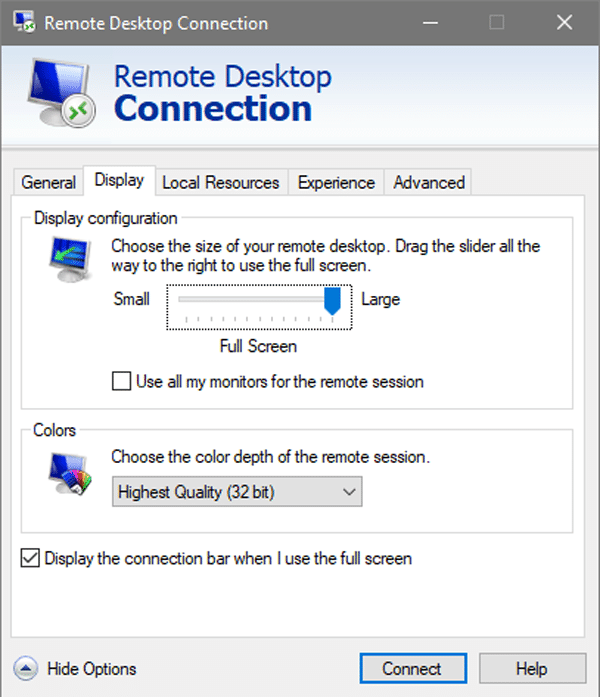
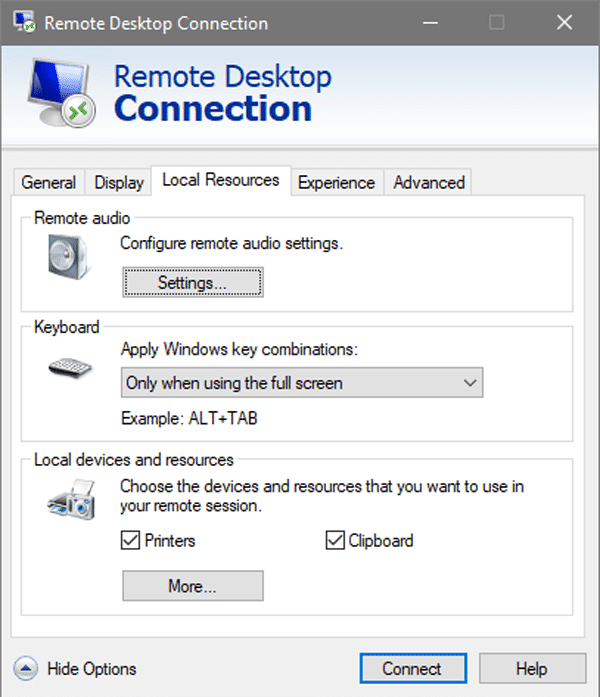
Explanations:
- Screen resolution can be adjusted by using the slider under “Display Configuration”
- To enable your audio signal on your local PC: Select “Settings” under “Remote Audio“, then tick “Play on this computer“.
- To enable your server to use your local printer: Please tick the “Printer” option under the “Local devices and resources” section.
- Shortcut for Copy (CTRL + C) and Paste (CTRL +V) is enabled by default, it can be disabled by un-tick “Clipboard“.
MacOS – RDP connections
To connect from a MacOS-based machine (such as an Apple MacBook), you must first download the RDP client from the following URL:
Microsoft Remote Desktop is available for download through the Mac App Store.
In the “Domain” section, start RDP client by providing the server’s IP address or hostname.
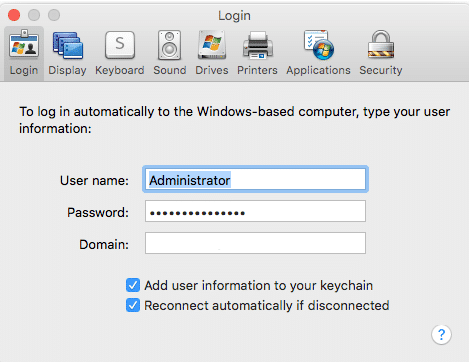
Always use the latest RDP client version, to ensured that there is no connection issues.
Android-base Systems – RDP connections
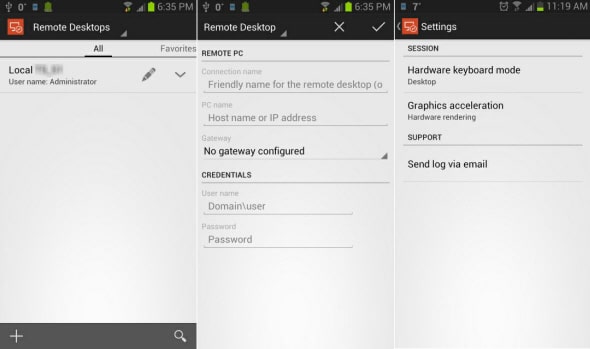
To connect from Google-Android-based systems (e.g. Samsung Galaxy), you need to download the RDP client from the download URL below:
https://play.google.com/store/apps/details?id=com.microsoft.rdc.android&hl=en
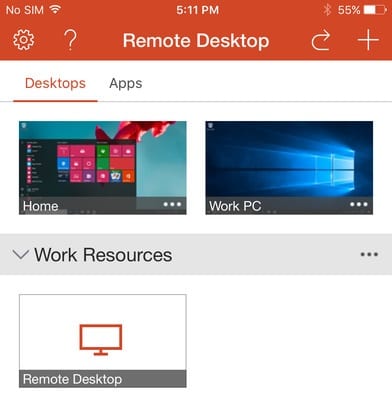
iOS-base Systems – RDP connections
To connect from iOS-based system (e.g. Apple iPhone), you need to download the RDP client from the download URL below:
https://itunes.apple.com/us/app/microsoft-remote-desktop/id714464092?mt=8&ign-mpt=uo%3D4
Conclusion
We hope this guide has helped you understand how to connect to your Windows VPS or Dedicated Server at ServerGigabit using RDP from various devices, including Windows, MacOS, Android, and iOS. By following the steps outlined in this guide, you can establish a stable and secure connection, giving you full control over your server no matter where you are.
Using RDP allows you to manage your server efficiently, run applications, transfer files, and perform administrative tasks as if you were physically present. Adjusting settings like screen resolution, audio, printer sharing, and clipboard options ensures that your remote session is tailored to your needs, making your workflow smoother and more productive.
Finally, always use the latest RDP client version and maintain strong login credentials to keep your connection secure. By doing so, you can fully leverage the benefits of your Windows VPS or Dedicated Server at ServerGigabit, whether for business, development, or personal projects, and enjoy uninterrupted access to your server at all times.
Hopefully, this guide has helped you understand how to connect to your Window VPS or Dedicated Server at ServerGigabit using RDP. If you haven’t started your Windows VPS or Dedicated Server and would like to click here.