Changing Password for remote desktop is an important security practice when accessing your computer remotely. Using Windows Remote Desktop, you can connect to your computer from anywhere in the world by logging in with your Windows username and password. The only requirement is that you have proper authorization to access the remote machine.
By updating your Windows log-on credentials, you can complete changing password for remote desktop at any time to keep your system secure. This is especially useful if you suspect unauthorized access, share credentials with others, or want to strengthen your account security.
Remote Desktop is commonly used to troubleshoot distant computers or access files from a home or business system while on the move. Here at ServerGigabit, we provide a clear, step-by-step guide to help you with changing password for remote desktop on your Windows VPS, ensuring safe and uninterrupted remote access.
Remote Desktop allows you to securely connect to computers from anywhere, making regular password updates a smart and essential security habit.
Step 1
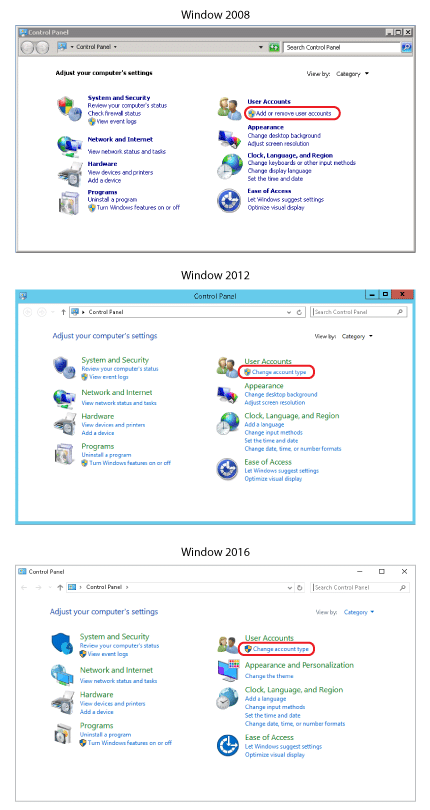
Select “Start” or the start globe. Choose “Control Panel,” select “User Accounts,”
Step 2
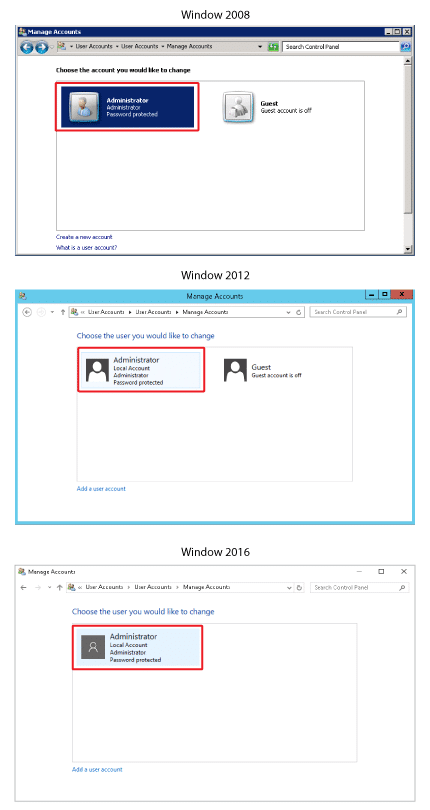
Select the account you want to change the password
Step 3
Select “Change the password”
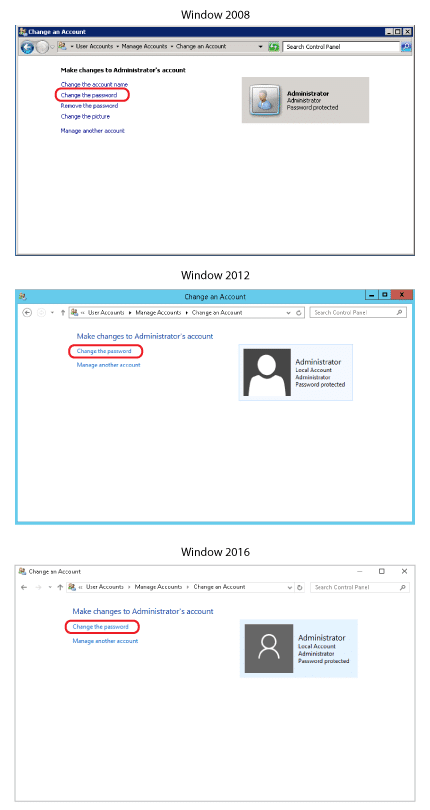
Step 4
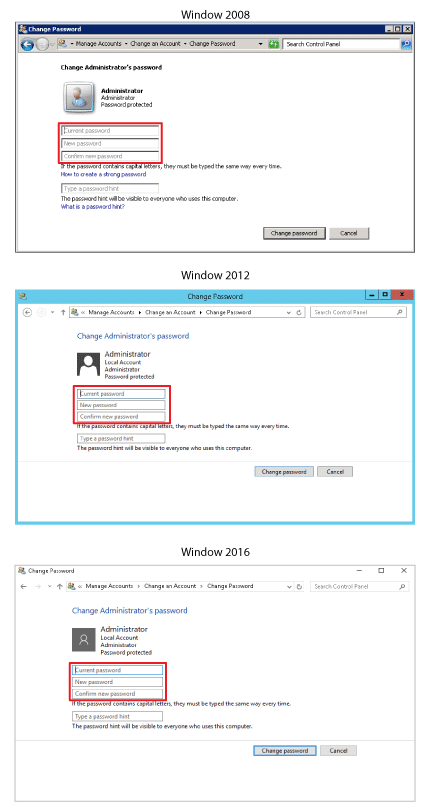
Type your current password and type your new password, select “Change password” to continue